I recently volunteered to revamp both the way Power Automates ( cloud flows) in a solution determine and log the success or error status of each flow run. A parent/orchestrator flow calls one or more child flows. Instead of creating separate structures or objects for responses and business or system exceptions, the child flow merges its response into a standard response contract. This post (part 1) describes how a child flow should define and populate response objects for the parent/orchestrator flows to return.
Table of Contents
- Parent verses Child flows
- Key Principles
- Setup
- Child Flow
- Configure the Manally trigger a flow Action
- Initaliase the Response Object
- Set Response Object: Success
- Optional Handling of Buiness Exceptions ( Errors)
- (Optionally)Set Response Object: Business Exception
- Business or System Exception
- Filter on the failed action
- Get First Failed Action Message
- Set Reponse Object: SYSTEM_EXCEPTION
- Finally Scope
- Final Thoughts
Parent verses Child flows
Key Principles
In Power Automate, parent cloud flows and child flows work together to create scalable and maintainable solutions. A parent flow orchestrates the overall process by handling the triggers (for example, automated triggers) and implementing high-level decision-making logic. Parent flows can delegate certain tasks to child flows by using the Run a child flow action , passing input parameters values such as unique IDs for Dataverse table rows or SharePoint list items .This approach makes child flows reusable and modular, allowing them to focus on well-defined tasks, such as creating a PDF document for a business report.
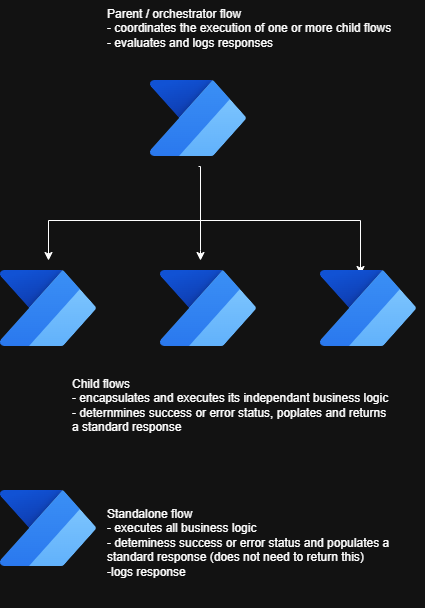
Parent /Orchestrator Flow
- Coordinates the execution of one or more child flows
- Evaluates responses returned by the child flows and applies decisioning logic
- Logs the response details to a dedicated SharePoint List. The action is centalised, typically only in the parent flow and provides an audit for the flow runs, beyond the standard 30 day flow run history
- make decisions based on the return response from the child flows and not exceptions
Child Flow
- Encapuslates and executes its independant business logic
- Evalues processing results and determines the response status: success, business exeption or system exception
- Creates the response (object) reflecting the response status which is returned to the parent flow
- Child flows never throw unhandled errrors ( exceptions)
- Child flow must be built around the: Error handling pattern (Try / Catch / Finally)
Standalone Flow
- Combines aspects of parent and child flows
- Host its own independant business logic
- Evaluates processing results and determines the response status: success, business exception or system exception
- Creates the response (object) reflecting the status
- Logs the response details in the same way as the parent flow
Setup
Define the Response Schema
After several attempts , I settled on a response schema that represents a structured object that encapsulates the full response outcome of a child cloud flow. This includes flow metadata, correlation identifiers, business status, domain-specific data, and detailed error information. When used consistently, this schema provides a standard contract for parent-child communication and supports reliable logging, retry handling, and escalation strategies. If needed, you can also enhance it, for instance, by adding a “code” property in the nested error element.
{
  "type": "object",
  "properties": {

    "flow": {
      "type": "object",
      "properties": {
        "runURL": { "type": "string" },
        "displayName": { "type": "string" },
        "flowId": { "type": "string" },
        "runId": { "type": "string" }
      },
      "required": ["runURL", "displayName", "flowId", "runId"]
    },

    "isSuccess": { "type": ["boolean", "null"] },
    "statusCode": { "type": ["string", "null"] },
    "message": { "type": ["string", "null"] },

    "data": {
      "type": ["object", "null"]
    },

    "error": {
      "type": ["object", "null"],
      "properties": {
        "type": { "type": ["string", "null"] },
        "detail": { "type": ["string", "null"] },
        "action": { "type": ["string", "null"] }
      }
    },

    "correlationId": { "type": "string" }
  },

  "required": [
    "flow",
    "isSuccess",
    "statusCode",
    "message",
    "correlationId"
  ]
}
flow.runURL | The actual flow run URL which can be used to view the flow run history. |
flow.displayName | The flow’s display name |
flow.flowId | The flow Id ( used for filtering in the SharePoint monitoring list) |
flow.runId | The flow run Id ( used for filtering in the SharePoint monitoring list) |
isSuccess | (Boolean) parent flow decision key |
statusCode | A fixed set of enumerations: SUCCESS, BUSINESS_EXCEPTION, SYSTEM_EXCEPTIONSUCCESS -the flow worked as intendedBUSINESS_EXCEPTION – the flow worked correctly, but business rule has prevented a success statusSYSTEM_EXCEPTION – the flow has failed because of a technical issue which needs to be investigated |
message | A general summary to be read by anyone |
data | Any useful return payload |
error.type | A fixed set of enumerations: VALIDATION, CONNECTOR, TIMEOUT, SECURITY, UNKNOWN |
error.detail | The diagnostic technical details that will assist support or developers, e.g. input values in calculations that raised a BUSINESS_EXCEPTION |
error.action | Suggested remedial action e.g. review an incomplete record. |
correlationId | A GUID passed in from the parent flow to allow end to end tracking |
Child Flow
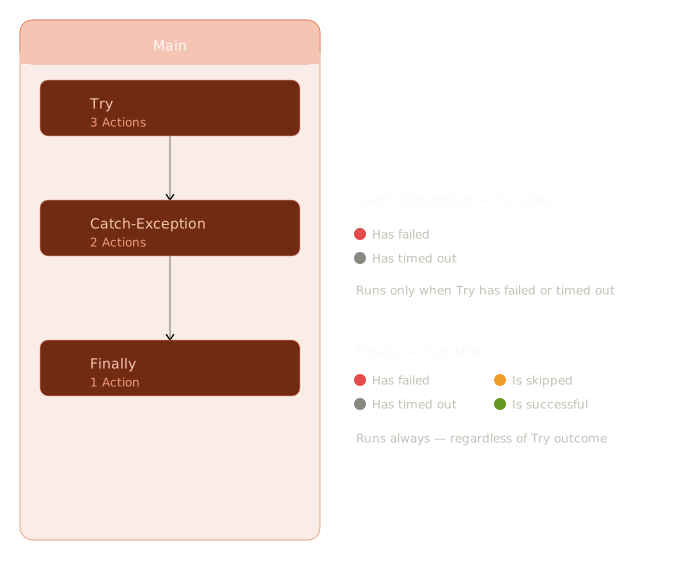
Power Automate implements the try–catch–finally pattern using run-after conditions attached to scope actions, providing structured error handling and a predictable flow of execution. A main orchestration scope typically contains Try, Catch (Exception), and Finally scopes, which makes the child flow easier to understand and maintain. The Try scope includes the core actions that execute the business logic. The Catch scope is configured to run when the Try scope fails or times out, allowing errors to be handled in a controlled and consistent manner.
Errors handled in the Catch scope may represent business exceptions, which are explicitly defined by business rules. For example, if a value falls outside an acceptable range, the system deliberately interrupts flow execution. System exceptions are unhandled runtime errors raised by actions or connectors during execution. The Finally scope runs after either the Try or Catch(Exception) scopes and constructs a consistent response, regardless of whether the outcome was a success, a business exception, or a system exception, before returning control to the parent flow.
Configure the Manually trigger a flow Action
In the Instant/ manual trigger of the cloud flow, configure parameters to be passed in from the parent flow. The CorrelationId provides a unique identifier binds the cloud to the parent flow when reporting. Other parameters can be unique identifiers for looking up row data when calling a Get row by id Dataverse action.
| Name | Type | Description |
|---|---|---|
| Correlation Id | Text | A guid() passed in by the parent flow |
| Account Id ( for example) | Text | An Id for lookup the row in the Account table |
Initialise the Response Object
The varResponse object adheres to the standardised response schema described earlier. The nested flow object leverages the output from the workflow() function, ensuring the flow run URL and flow display name are consistent in every response. The correlationId is the GUID supplied by the parent flow, allowing parent and child flow executions to be correlated. In this implementation, it is the first text input parameter.
{
  "flow": {
    "runURL": @{concat('https://make.powerautomate.com/environments/',
     workflow()?['tags']['environmentName'],'/flows/',workflow()?['name'] ,
     '/runs/',workflow()?['run']['name'])},
    "displayName": @{workflow()?['tags']?['flowDisplayName']},
    "flowId": @{workflow()?['id']},
    "runId": @{workflow()?['run']?['name']}
  },
  "isSuccess": @{null},
  "statusCode": @{null},
  "message": @{null},
  "data": @{null},
  "error": {
    "type": @{null},
    "detail": @{null},
    "action": @{null}
  },
  "correlationId": "@{triggerBody()?['text']}"
}
Set Response Object: Success
Towards the very end of the Try scope, you will configure the Set Variable action for the varResponse. As this is successful response, the isSuccess and statusCode properties must be set to the values as shown below. The message can be whatever you want.
{
  "flow": {
    "runURL": @{concat('https://make.powerautomate.com/environments/',
     workflow()?['tags']['environmentName'],'/flows/',workflow()?['name'] ,
     '/runs/',workflow()?['run']['name'])},
    "displayName": @{workflow()?['tags']?['flowDisplayName']},
    "flowId": @{workflow()?['id']},
    "runId": @{workflow()?['run']?['name']}
  },
  "isSuccess": @{true},
  "statusCode": "SUCCESS",
  "message": "Operation is successful",
  "data": @{null},
  "error": {
    "type": @{null},
    "detail": @{null},
    "action": @{null}
  },
  "correlationId": "@{triggerBody()?['text']}"
}Optional Handling of Business Exceptions (Errors)
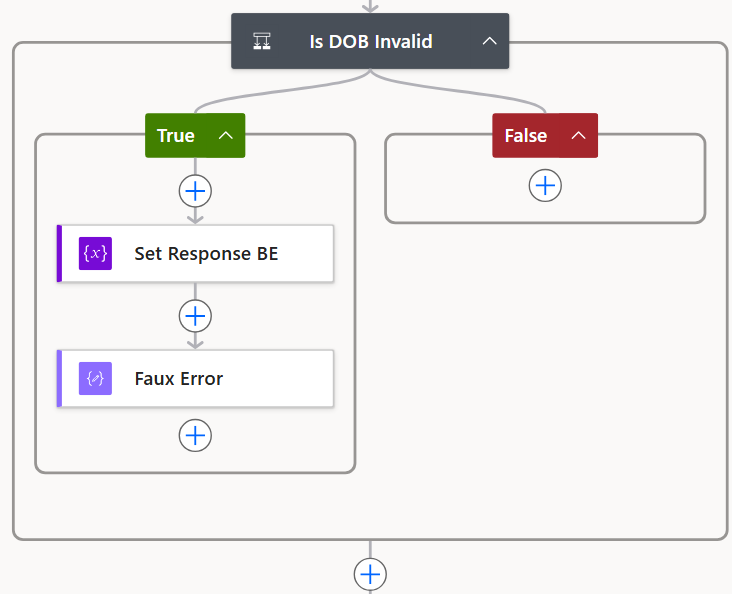
If you want the flow execution to include a business exception during processing, then you will need to configure a few additional steps. In a Condition or Switch Action, set the logical expression for trapping the business error, for example, check for a valid date of birth.
(Optionally)Set Response Object: Business Exception
In the true path, set the varResponse object, set isSuccess is false and statusCode is a BUSINESS_EXCEPTION. The error details are up to you.
{
  "flow": {
    "runURL": @{concat('https://make.powerautomate.com/environments/',
     workflow()?['tags']['environmentName'],'/flows/',workflow()?['name'] ,
     '/runs/',workflow()?['run']['name'])},
    "displayName": @{workflow()?['tags']?['flowDisplayName']},
    "flowId": @{workflow()?['id']},
    "runId": @{workflow()?['run']?['name']}
  },
  "isSuccess": @{false},
  "statusCode": "BUSINESS_EXCEPTION",
  "message": "DOB cannot set to today!",
  "data": @{null},
  "error": {
    "type": "VALIDATION",
    "detail": "The date entered for DOB  cannot be the current date",
    "action": "Please go back and enter a valid date"
  },
  "correlationId": "@{triggerBody()?['text']}"
}To force an error, configure a Compose action with an expression that deliberately triggers an error condition, such as union(null, null). As a result, the flow execution moves directly to the Catch (Exception) scope and bypasses the remaining actions. Suggest naming this action to clearly indicate its purpose as Faux Error.
A system exception in a Power Automate flow run is an unexpected failure caused by the automation platform, connectors, infrastructure, or external systems, rather than by valid business rules or input conditions. Therefore, the Catch (Exception) scope should handle it, constructing and returning the response to the parent flow.
Business or System Exception
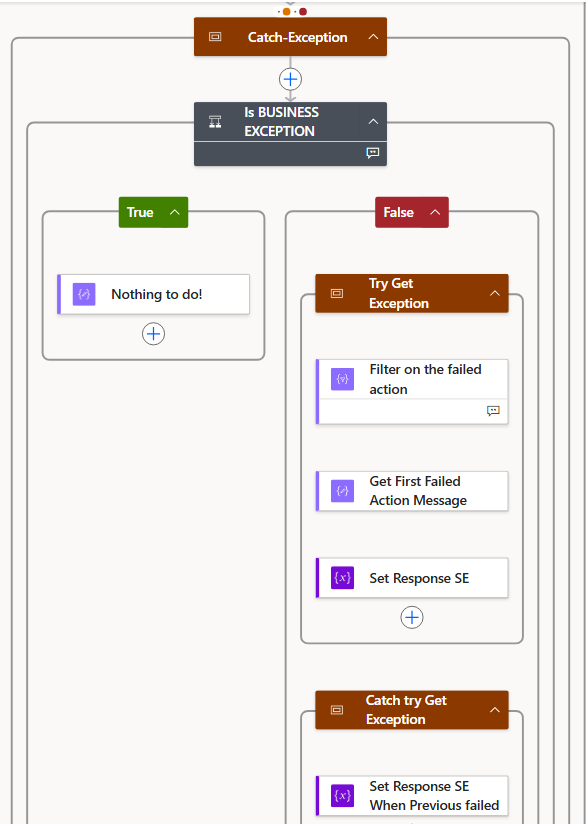
Next, check for business exception.
equals(variables('varResponse')?['statusCode'], 'BUSINESS_EXCEPTION')Filter on the failed action
In the try scope, locate first failed action message and the actual action that caused the error or timeout. Please note: edit the action in advanced mode.
From: results('Try')
Filter Query : or(equals(item()?['Status'], 'Failed'), equals(item()?['Status'], 'TimedOut'))
Get the first failed action message
You can locate the first error message and the first action that caused the error:
first(body('Filter_on_the_failed_action'))?['error']?['message']
first(body('Filter_on_the_failed_action'))?['Name']
Set Reponse Object: SYSTEM_EXCEPTION
{
  "flow": {
    "runURL": @{concat('https://make.powerautomate.com/environments/',
     workflow()?['tags']['environmentName'],'/flows/',workflow()?['name'] ,
     '/runs/',workflow()?['run']['name'])},
    "displayName": @{workflow()?['tags']?['flowDisplayName']},
    "flowId": @{workflow()?['id']},
    "runId": @{workflow()?['run']?['name']}
  },
  "isSuccess": @{false},
  "statusCode": "SYSTEM_EXCEPTION",
  "message": "System exception",
  "data": @{null},
  "error": {
    "type": "UNNOWN",
    "detail": " @{if(empty(first(body('Filter_on_the_failed_action'))?['Name']), actions('Try')?['Name'], first(body('Filter_on_the_failed_action'))?['Name'] )}- @{if(empty(outputs('Get_First_Failed_Action_Message')),actions('Try')?['Error']?['Message'],outputs('Get_First_Failed_Action_Message'))} ",
    "action": @{null}
  },
  "correlationId": "@{triggerBody()?['text']}"
}Finally Scope
The Respond action needs a guaranteed primitive type, so you must wrap the response object with the string(): this forces serialisation and type safety and compatibility with Power Apps and or calling flow.
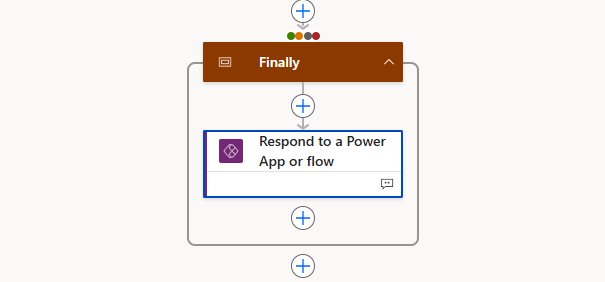
So in the Respond to Power App or flow action:
Response : string(variables('varResponse'))
Final Thoughts
The steps above ensures the child flow will always return a meaningful response to the parent flow. Part 2 of this series will show how the parent flow can parse the response and perform tasks such as logging it to SharePoint. Please submit any comments below.