A Dev Drive formatted as a ReFS (Resilient File System) partition provides an alternative to NTFS. It offers key benefits such as improved resilience to corruption and greater efficiency when handling large data sets, making it ideal for scenarios like GitHub repositories. However, setting up a Dev Drive on an OEM-configured laptop can be challenging, especially if unmovable files prevent resizing the main C: drive partition to free up space. This post outlines the steps needed to reclaim partition space and successfully configure a Dev Drive in the free disk partition space.
Where to install the Dev Drive
You have the option to install the Dev Disk in a couple of places:
- Create in a disk partion: using a physical disk partition provides the best performance, as it avoids the overhead of a virtualisation layer. However, this approach requires resizing existing partitions, which can be more complex—particularly if there are immovable system files.
- Create a new Virtual Hard Disk (VHD): alternatively using a virtual disk introduces a small performance overhead compared to a physical partition, but it greatly simplifies the setup process. You can avoid the challenges of resizing partitions; as the virtual disk is created as a file, so skipping the steps outlined in this post . Windows supports both VHD (up to 2 TB) and VHDX (up to 64 TB) formats. Note, it does not require a virualisation or Hyper-v , so works accross Windows editions An additional advantage is portability—VHD and VHDX files can be easily copied and moved between machines
So what are the unmovable files?
So when there is plenty of free space but Windows can only shrink the main partition to the last unmovable file on the volume, for OEM-configured systems including Dell, these include
- Blitlocker metadata
- WinRE / recovery files
- Pagefile (pagefile.sys
- Hibernation file (hiberfil.sys)
- System progectioin (VSS snapshots)
- OEM recovery and alignment contstraints
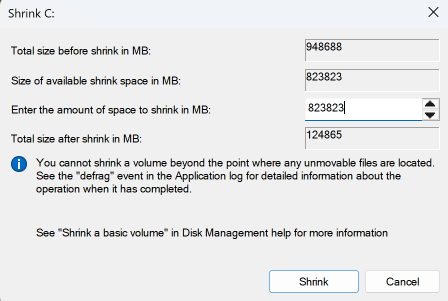
Prequistes
- Windows 11 (Home & Pro), Build #10.0.22621.2338 or later (check for Windows updates)
- Recommended 16 GB memory
- Minumum 50 GB free disk space
- Local admistrator permissions
1. ✅Temporarily suspend Bitlocker
2. ✅ Temporarily disable hibernation
3. ✅Temporarily disable the pagefile
![Screenshot of Windows Virtual Memory settings dialog: C: [OS] shows System managed; D: [Dev] None, with 'No paging file' selected and a Set button visible.](https://westerdale.blog/wp-content/uploads/2026/05/Adjust-system-properties-rs.png "Adjust system properties rs - westerdale.blog")
4. ✅Temporarily Disable System Protection
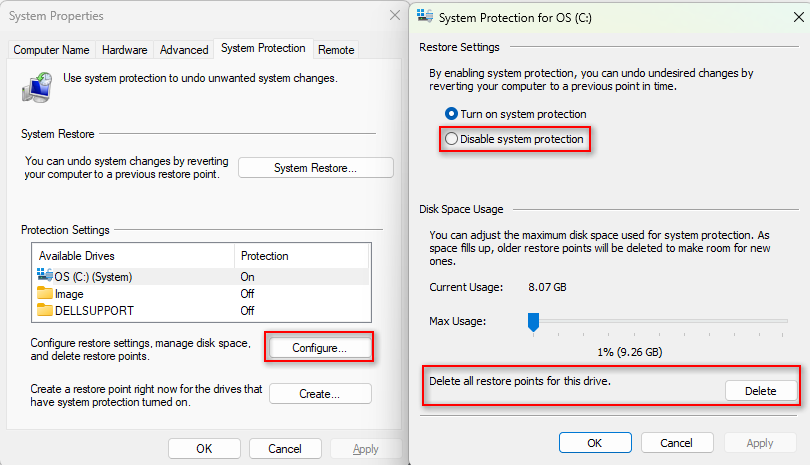
5. ✅Retry shrinking via Disk Management
You should now be able to resize the C volume to free up 50 GB of space to create the Dev Drive.
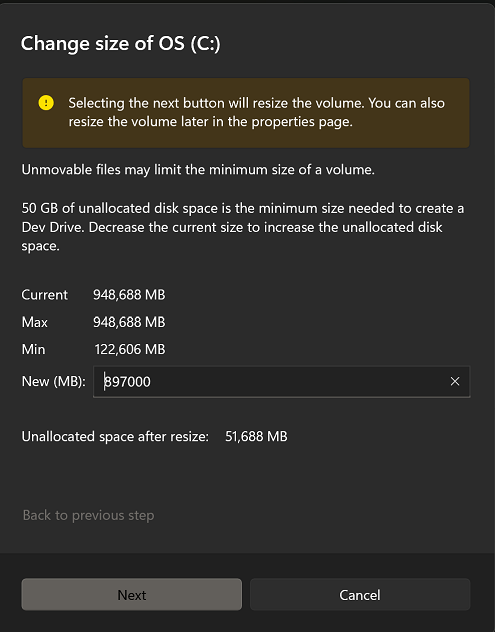
6. ✅Create the Dev Drive
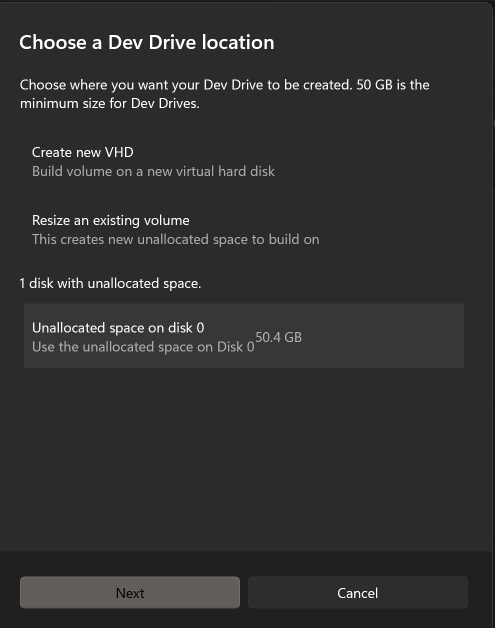

Reverse the above steps
Remember to enable BitLocker, hibernation etc
Please comment if you found this post useful.